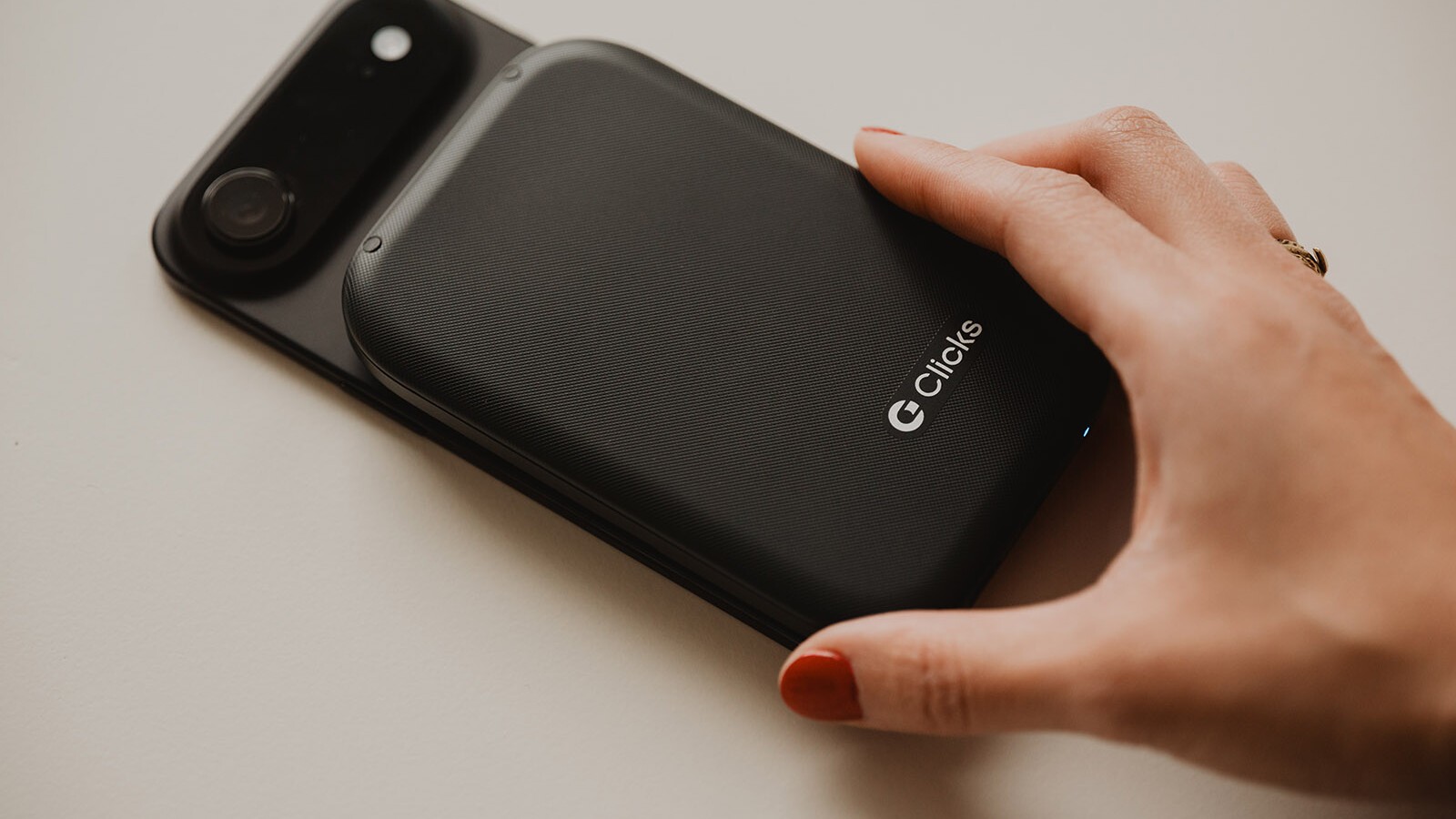
We have some exciting updates on Power Keyboard as we prepare to begin shipping in May. Power Keys has passed through several of the final phase gates on the path to final manufacturing. Along the way, we've been able to add some new, expanded capabilities.
Expanded support for up to nine bluetooth devices.
We had originally communicated that Power Keyboard could be paired with up to 3 Bluetooth devices like phones, tablets, smartTVs and headsets.
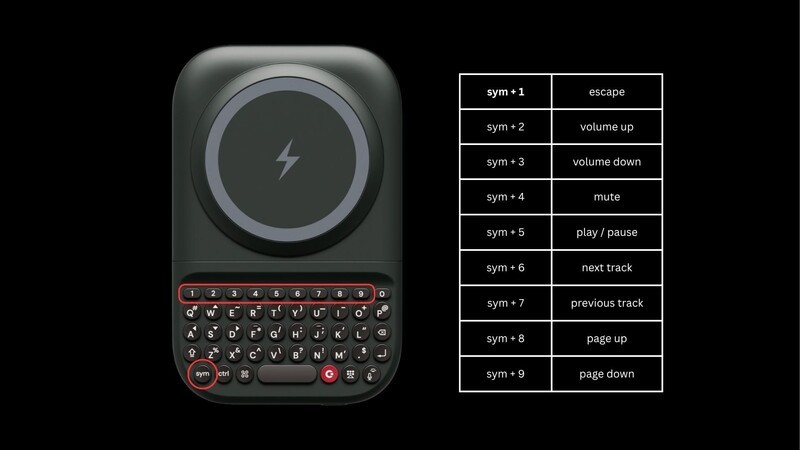
Power Keys now offers 9 pairing slots. Each of the number row buttons 1-9 can now be set up to connect to a different Bluetooth compatible device. Once paired, it's easy to change between active connections by simply pressing the power key followed by the number designed to the smart device you want to connect with.
Keyboard shortcut to control wireless charging.
Wireless charging can be turned on and off to help conserve the Power Keys battery. In addition to controlling this through the Clicks App, we have added a keyboard shortcut.
Holding Sym and pressing the Clicks Key will move between wireless charging on and off.
Additional power management options, like setting a reserve for the keyboard, can be configured within the Clicks App.
New shortcuts for media playback.
Power Keys can be paired to smart TVs as a bluetooth keyboard for entering passwords, searching for content and navigating using the directional keys. To provide extended support for smart TVs we have added new controls for media playback and navigation. Holding down the 'sym' key and pressing keys 1-9 takes the following actions:
Redesigned Clicks App with Power Keyboard support
The Clicks App for iPhone and Android has been redesigned to provide a better user experience and offer more control over your Clicks Keyboard case and Power Keyboard.
You'll be able to quickly move between Clicks products by selecting them through the new drop down.
Power Keys will offer similar features to the Clicks Keyboard case in terms of backlight controls, as well as keyboard settings and preferences, but with a few new features.
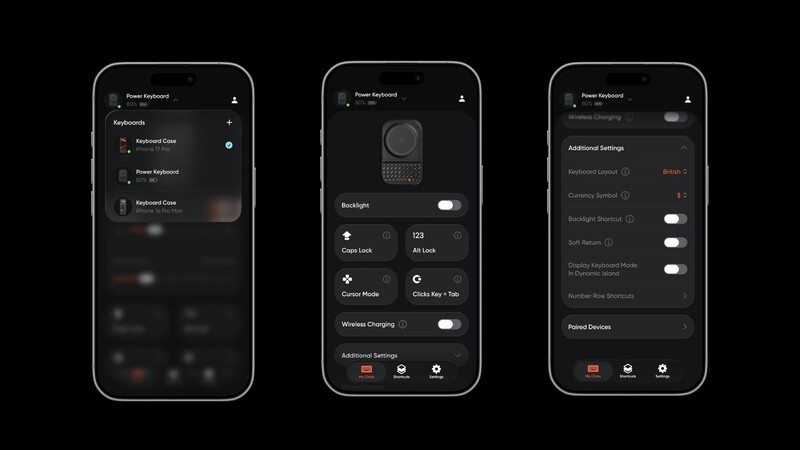
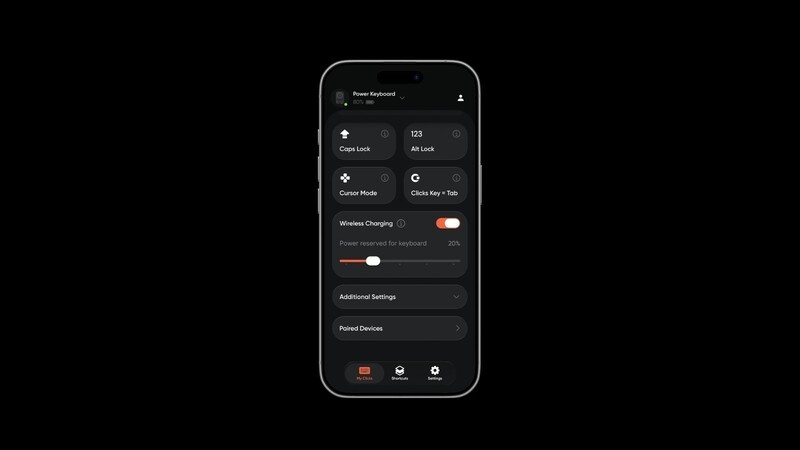
Wireless charging can be turned on and off through the app, or by keyboard shortcut. When enabled, you can also choose to set a power reserve for the keyboard. The power reserve automatically disables wireless charging once the Power Keyboard battery reaches a threshold. This ensures that you will always have enough battery power for the bluetooth keyboard itself.
You can adjust the power reserve with the slider in the wireless charging option. If you want to use the full Power Keyboard power bank to charge your phone, you can simply set the power reserve to 0% by sliding the control all the way to the left.
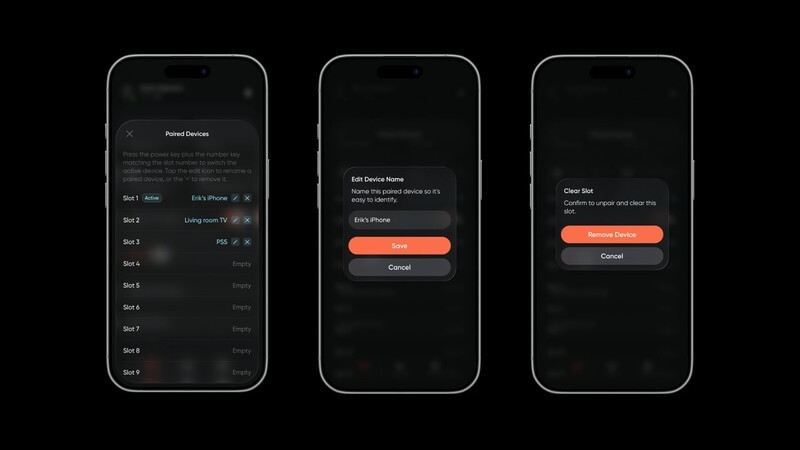
The Clicks App also makes it easy to review which smart devices are paired to Power Keyboard, adjust their names and clear those slots.
By selecting 'paired devices' you'll see a list of the 9 Bluetooth slots associated with the 1-9 keys. You'll be able to review which device is paired to which slot, edit the device name and remove the device with a touch.
Pro tip: We've also made it easy to clear slots using the keyboard too. To clear a slot without the app first activate it as normal by pressing the power key + the designated number key (1-9). Then, hold down the sym button and press 0. That channel is now clear and available for re-pairing.
Next steps and shipping timeline
During testing and our pre-production manufacturing runs we identified a few opportunities to improve Power Keys, including refinements to the metal slider. These refinements have added a couple of weeks to the schedule, however we are still expecting to begin shipping the first 5,000 units to customers by the end of May.
Manufacturing will continue ramping up with additional units beginning to leave the factory mid-June, in line with our estimate to ship in the Spring.
We'll share our next update in May.
Read more
Power Keyboard: July 31 Update
As July wraps up we wanted to provide an update on Power Keys manufacturing and fulfillment. We know the wait has felt long, and so we want to be open about exactly where things stand. Manufacturing of all pre-orders is on schedule to be completed by August 14th. Here's how that breaks down by order date: Batch 1 (Jan 2-Feb 8): By the end of today, we expect that 75% of batch 1...
Power Keyboard: June 1 Update
First pre-orders shipping in May. Plus a look behind the scenes at manufacturing.
Road to Communicator: April Update
An update from Team Clicks on the schedule and timeline of bringing the Clicks Communicator to market in 2026.
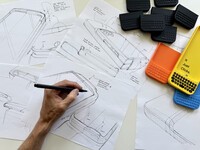
The Keyboard Mastermind Behind the Clicks Keyboard
Every detail of the Clicks keyboard was designed with intention—and few people understand that better than Joseph Hofer. As a former lead designer behind BlackBerry's most iconic keyboards, Joseph brings decades of experience in ergonomics, tactile design, and product craftsmanship. In this conversation, he shares what makes a keyboard truly great, how Clicks evolved from BlackBerry DNA...