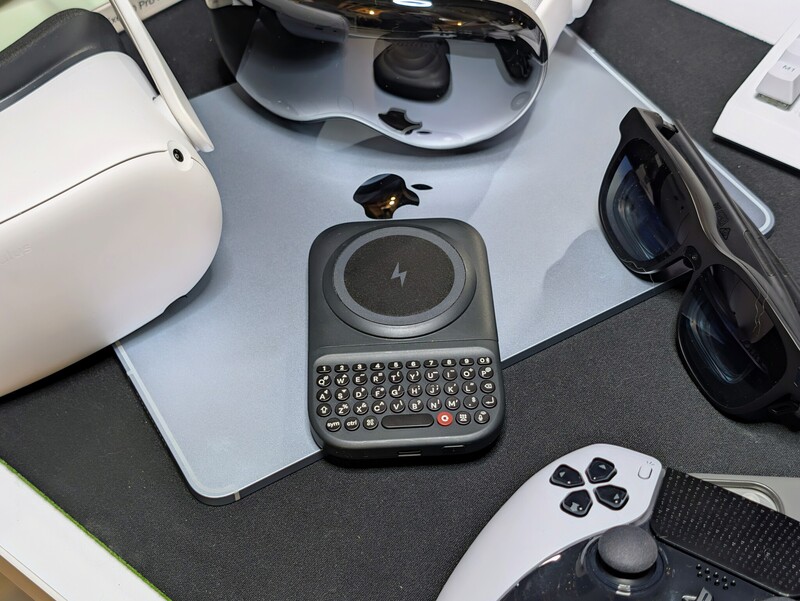
Some people snap the Clicks Power Keyboard onto their smartphone, enjoy having real physical keys under their thumbs again, and stop there. It makes sense: reclaiming half your screen from a digital on-screen keyboard is an instant and satisfying win.
But treating the Power Keyboard solely as a phone accessory leaves its best capabilities on the table.
Having that physical keyboard aross your tech life can change the game for every Equipped with Bluetooth Low Energy (BLE 5.4), an integrated 2,300 mAh power bank, and instant hardware switching across up to nine distinct Bluetooth channels, the Power Keyboard also works as the ultimate, pocketable input deck through your entire smart home.
When you pull the Power Keyboard off the back of your phone, it adapts to the rest of the screens in your life.
Whether you want to eliminate the misery of living-room search bars, build an ultra-compact travel workstation, or bypass floating keyboards in spatial computing, here is how to put your Power Keyboard to work across your hardware ecosystem.
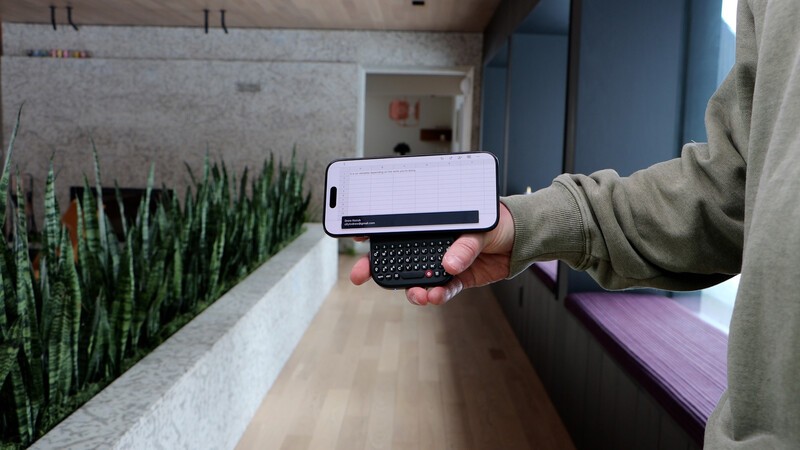
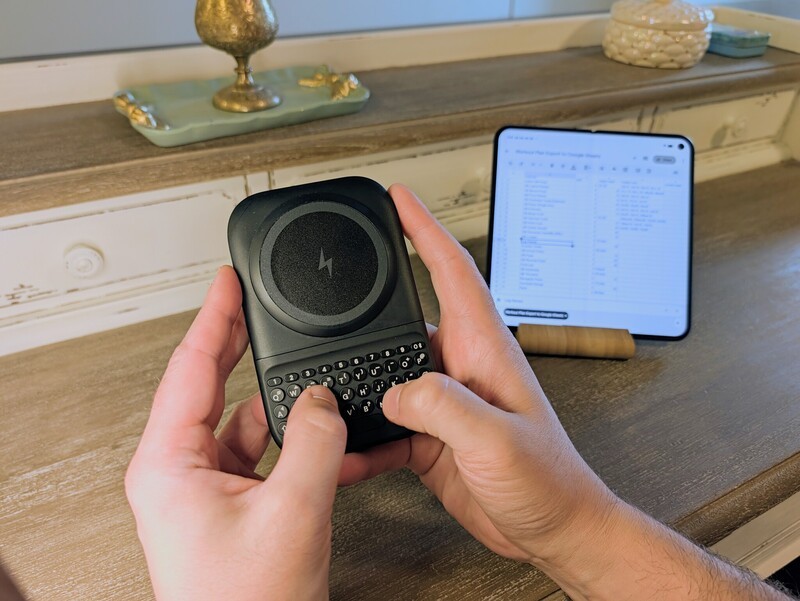
1. Tablets and Foldables: Your Mobile Workstation
Folio keyboard cases turn tablets into heavy clamshells that demand flat surfaces. On an airplane tray table, a tiny coffee shop perch, or a train commute, a rigid keyboard case leaves almost no room to breathe.
Detaching the Power Keyboard from your phone instnatly transforms your iPad, Android tablet, or unfolded foldable into an ultra-portable productivity setup. Prop your screen up on an integrated kickstand or tray stand, lean back, and hold the keyboard comfortably in two hands.
- Split-Screen App Flipping: Keep your hands off the display. Use Cmd + Tab on iPadOS or Android to cycle through active apps, and tap Cmd + Space to launch Spotlight or your universal app search instantly.
- Spreadsheet and Data Entry in Cursor Mode: Editing cells in Google Sheets or Microsoft Excel on a touchscreen is frustrating. Toggle Cursor Mode (SYM + Cmd) to lock your keys into directional arrow inputs (WASD and IJKL), letting you jump between columns and rows with pinpoint precision.
- Foldable Freedom: If you carry a book-style foldable, set it on a table in flex mode. Typing detached from the physical screen keeps your posture natural while retaining full access to large split-screen workflows.
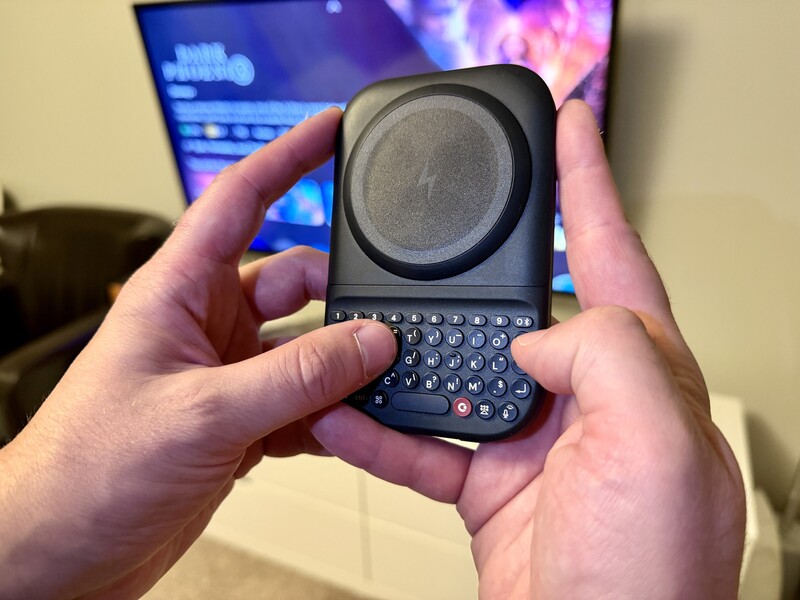
2. Smart TVs and Streaming Boxes: Fixing the 10-Foot Text Problem
Entering text on a television using a standard directional remote control is one of modern tech's most irritating experiences. Hunting and pecking letter-by-letter across an on-screen alphabet grid to log into Netflix, type a 16-character Wi-Fi key, or search for an obscure director takes minutes.
Pairing the Power Keyboard directly to your TV or streaming player fixes this instantly.
- Direct Native TV Pairing: Most modern smart TVs (Samsung Tizen, LG webOS, Hisense VIDAA, or Google TV) feature built-in Bluetooth receivers. Pair the Power Keyboard to an open slot (for instance, Power + 3), and you can thumb-type long movie titles and complex passwords in seconds.
- Streamlined Apple TV and Streaming Box Control: While using an iPhone software keyboard works for Apple TV, grabbing a physical controller sitting on your coffee table is faster.
- Precision Menu Gliding: Hold SYM and use W, A, S, D as a tactile D-pad to cruise through streaming catalog carousels. Hit SYM + 1 to back out of menus or escape to the home screen.
- Hardware Media Playback: Control living room audio without juggling remotes. SYM + 5 toggles Play/Pause, while SYM + 2 and SYM + 3 manage master volume.
3. Spatial Computing: Effortless Input for Apple Vision Pro & Meta Quest
Spatial computing offers limitless display space, but text input remains a persistent bottleneck. Mid-air "air typing" on floating virtual keyboards lacks tactile resistance, causes arm fatigue, and obscures open application windows. Furthermore, headsets like the Apple Vision Pro prioritize visual immersion, often obscuring standard third-party desktop keyboards in passthrough mode.
Because the Power Keyboard is compact, you can use it entirely by feel right from your lap.
- Lower-Periphery Typing: Keep the Power Keyboard unattached in your hands. If you are using Apple Vision Pro, dial back immersion slightly with the Digital Crown (around 10%) so your hands remain clear in your lower peripheral vision while your browser and documents float overhead.
- High-Speed Web Browsing: Launch Safari with Cmd + Space, hit Cmd + L to jump straight to the URL/search field, and type at full speed without lifting your arms or pecking into thin air.
- Frictionless Spatial Media Control: When you are watching movies in a fully immersive environment, you don't need to reach out to pinch floating transport widgets. Tap SYM + 5 to toggle playback, or use SYM + 6 / 7 to scrub forward and back.
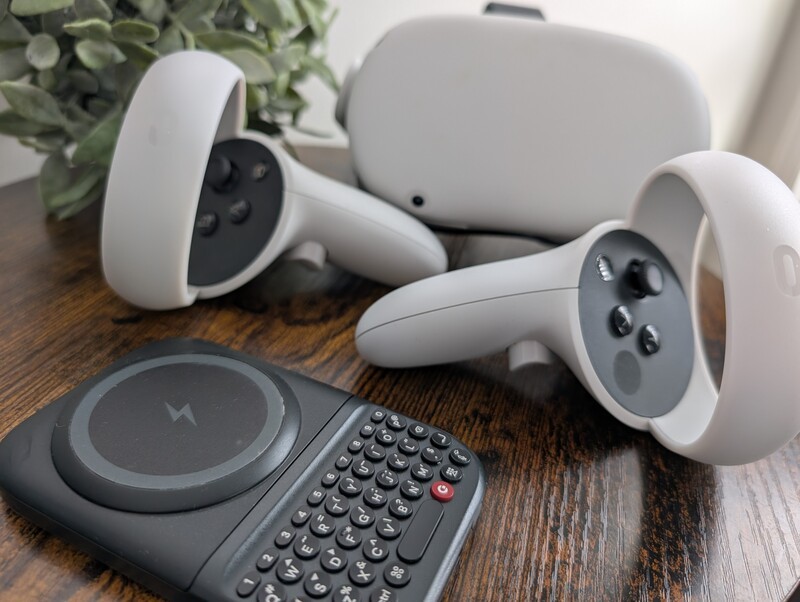
4. Gaming Consoles and PC Handhelds: Fast In-Game Chat
Cross-play gaming connects console players with PC communities, but communication has not kept pace. If you play team-based games on a PlayStation 5, Xbox Series X, or PC handheld, trying to coordinate tactics via an on-screen gamepad keyboard is painfully slow.
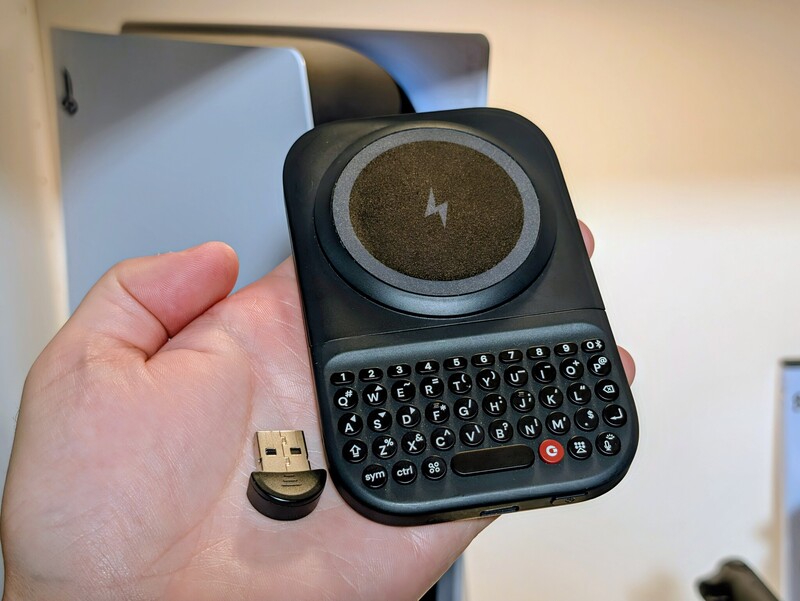
- Living Room Console Lobbies (PS5 & Xbox Series X): Pair your keyboard to the console (using a low-cost, latency-free USB Bluetooth dongle plugged into the console's front port if native accessory profiles are restricted). Keep the Power Keyboard resting next to you on the couch. When a lobby text box or in-game chat prompt opens in games like Helldivers 2, Final Fantasy XIV, or Sea of Thieves, pick up the keyboard, drop your message, and jump right back to your analog sticks.
- Portable PC Handhelds (Steam Deck & ROG Ally): On-screen keyboards on PC gaming handhelds take up half the display and break immersion. Keep the Power Keyboard in your travel kit. When you hop on Discord to coordinate a game or jump into desktop mode to tweak system settings and search game directories, put down the sticks and use tactile thumb-typing.
5. Mobile Privacy Workstations: Smart Glasses & Detached Phone Setups
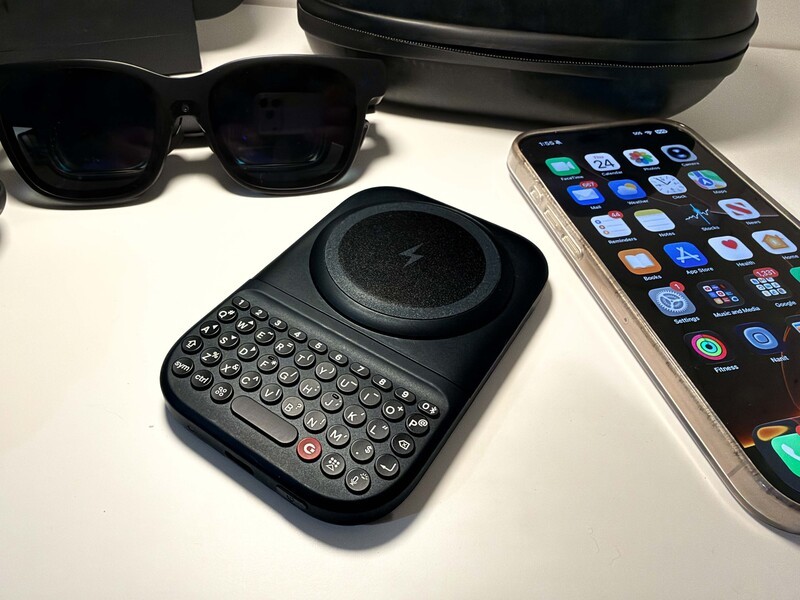
One of the most powerful setups for frequent flyers and mobile professionals requires just two pieces of gear: your phone and a pair of XR smart glasses.
- The Virtual Multi-Monitor Commute: Plug a pair of USB-C smart glasses into your smartphone, prop the phone on your tray or tuck it in your pocket, and hold the detached Power Keyboard in your lap. The glasses give you a private 120-inch virtual display that nobody next to you can see, while the Power Keyboard gives you full tactile control over docs, emails, and web research.
- All-Day Backup Power: If hours of display mirroring and cellular tethering drain your phone battery, snap the keyboard back onto your phone via MagSafe or Qi2 alignment. The built-in 2,300 mAh battery provides an immediate 7.5W wireless charge top-up to carry you through the rest of your travel day.
Your Everyday Ecosystem Matrix
To keep your workflow organized, here is an example setup demonstrating how to map your hardware channels using the Clicks App and hardware shortcuts:
| Channel Slot | Assigned Device | Ideal Scenario / Workflow |
|---|---|---|
| Channel 1 | Primary Smartphone | Snapped on via magnetic slider for everyday messaging and app shortcuts. |
| Channel 2 | Work Tablet / Foldable | Detached "lean-back" typing for spreadsheets, Slack, and email drafting. |
| Channel 3 | Living Room Smart TV | Fast password logins, title searches, and directional D-pad navigation. |
| Channel 4 | Apple Vision Pro / Quest | Peripheral touch-typing in Safari without arm fatigue or floating keyboards. |
| Channel 5 | Console / Steam Deck | Instant in-game lobby communication, Discord messages, and store searches. |
| Channel 6 | XR Glasses Setup | Head-up, eyes-forward private workstation during flights or cafe sessions. |
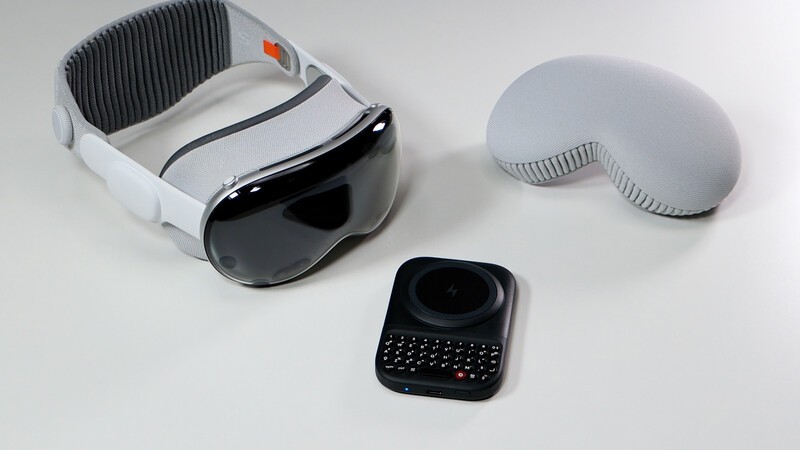 Typing on Vision Pro is not a smooth process with the virtual keyboard. Power Keyboard unlocks a new level of productivity with this device.
The Intentional Multi-Device Companion
The Clicks Power Keyboard was designed to bring tactile intention back to smartphone communication. Power users go deep when it comes to configuring their keyboard to be the ultimate smartphone companion. When you look beyond the phone, that same tactile speed applies to the rest of your digital gear.
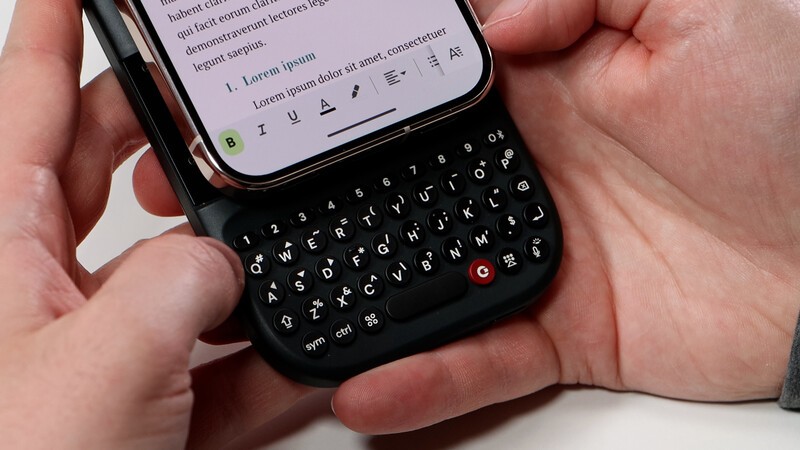
By offloading cumbersome typing from on-screen displays, streaming boxes, and spatial environments to physical keys, you spend less time wrestling with menus and more time getting things done.
Pair a few new devices this week, explore the hardware channels, and turn your keyboard into the central input hub for your tech life.
Read more
The Power User's Guide For The Clicks Power Keyboard
The Clicks Power Keyboard is a command center for your whole tech ecosystem. And once you push past the basics of typing, to get the most out of your Power Keys, try these tips and tricks!
What is ‘premium’? It’s more than meets the eye.
Everything about Clicks Communicator has been designed to deliver a premium communication experience from the inside, out.
Introducing the Communicator Ring
Communicator Ring is a minimalist bumper case that gives Clicks Communicator an added layer of protection while complementing its design.
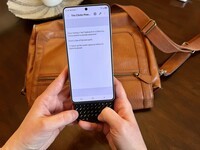
Does the Clicks Power Keyboard Work with Samsung Galaxy Phones?
At Clicks, we believe your technology should work for you, not against you. Since the beginning, we've been dedicated to helping people reclaim their screen real estate and rediscover the precision that only a physical keyboard can provide. With the launch of the Clicks Power Keyboard, we're bringing that high-performance tactile experience to a massive new world of devices....