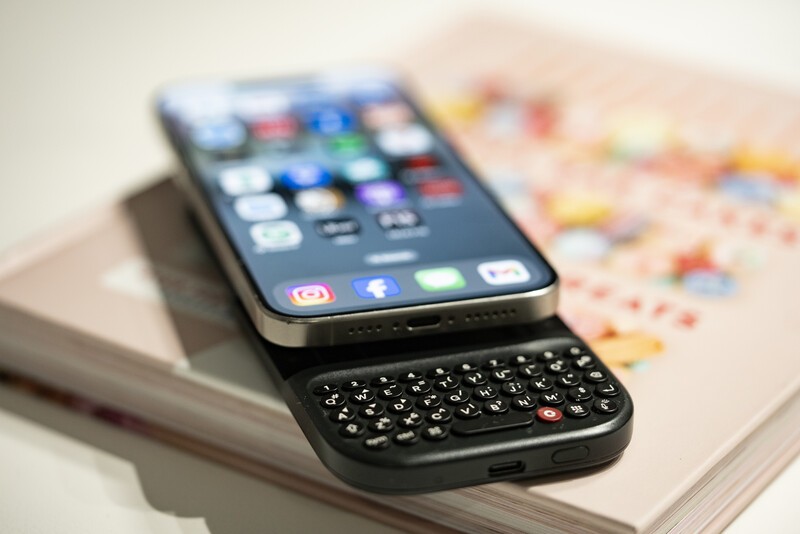
Most people attach the Power Keyboard to their phone, appreciate having tactile keys back, and leave it at that. But the hardware has way more range and if you're only using it for basic typing, you're missing out.
The Clicks Power Keyboard is a command center for your whole tech ecosystem.
This deep-dive explores how to turn Clicks Power Keyboard into a universal input deck across your devices: from one-touch automation macros on your phone to couch navigation on your TV, tablets and gaming consoles, and spatial headsets.
Part 1: The Basic Stuff - Getting Started
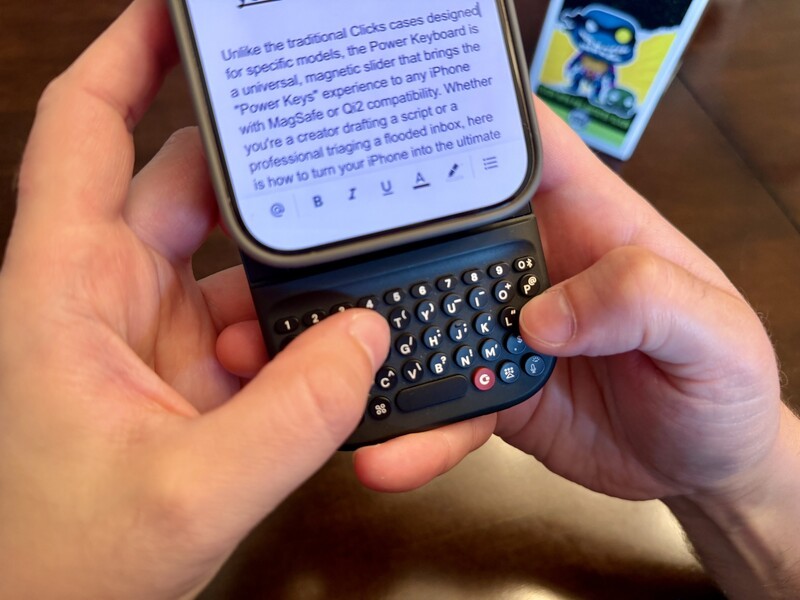
Chances are as soon as you pulled your Power Keyboard out of the box, you paired it with your phone and got straight down to typing.
On the off chance that you missed some key features in your eagerness to get thumbs on buttons, here's some key stuff to remember:
- Slider Positions: The Clicks Power Keyboard has three main slider positions (plus you can use it while it's closed). Experiment which position feels best based on the size and orientation of your phone.
- Charging: First and foremost, the Power Keyboard is a keyboard for the devices in your tech ecosystem. But, it also has that built-in 2,300 mAh battery to add juice to your devices when you need it.
It's also easy to turn on and off wireless charging as needed usig a simple keyboard shortcut. Just press the sym and clicks keys at the same time to turn on and off wireless charging. While you can also control this function in the app the keyboard shortcut is the fastest way to manage this feature.
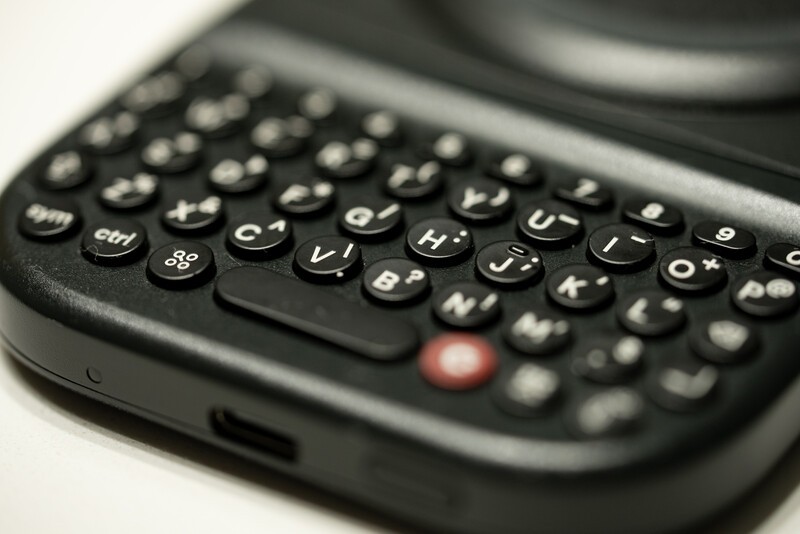
The backlighting is great for visibility on the Clicks Power Keyboard, but if it's a function you don't want to use, you can also adjust turn it off an on with a keyboard shortcut. Just press the sym and microphone keys to turn backlighting on or off.
For simple step-by-step setup of your Power Keyboard, make sure to check out the complete guide linked here.
Part 2: Shortcuts - The Productivity Hack
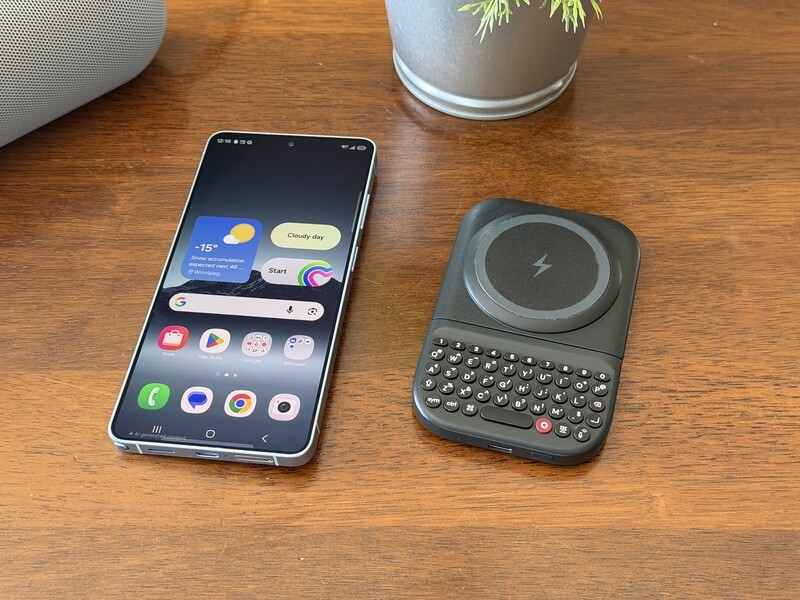
Right out of the box, your Clicks Power Keyboard is ready to work with existing iOS shortcuts and Android shortcuts.
Built-In iOS Shortcuts
| Action | Shortcut |
|---|---|
| Search (Spotlight) | Command + Space |
| Go to Home Screen | Command + H |
| Switch Apps | Command + Tab |
| Copy Text | Command + C |
| Paste Text | Command + V |
| Cut Text | Command + X |
| Undo Action | Command + Z |
| Select All | Command + A |
| Scroll Down (Web/Lists) | Space |
Built-In Android Shortcuts
| Action | Shortcut |
|---|---|
| Activate Gemini | Command + Spacebar |
| Open Browser | Command + B |
| Open Calendar | Command + C |
| Open Gmail | Command + E |
| Go To Home Screen | Command + H |
| Open Settings | Command + I |
| Lock Screen | Command + L |
| Open Maps | Command + M |
| Open Notification Shade | Command + N |
| Open Contacts | Command + P |
| Quick Settings Panel | Command + Q |
| Screenshot | Command + S |
| Calculator | Command + U |
| Launch Widgets | Ctrl + W |
| Open YouTube | Command + Y |
| View Applications | Command |
Most people don't even know these are available, but now you'll be able to master them instantly. This iPhone shortcuts guide and Android shortcuts guide will highlight the default shortcuts baked right into your phone's OS that are unlocked with the Power Keyboard.
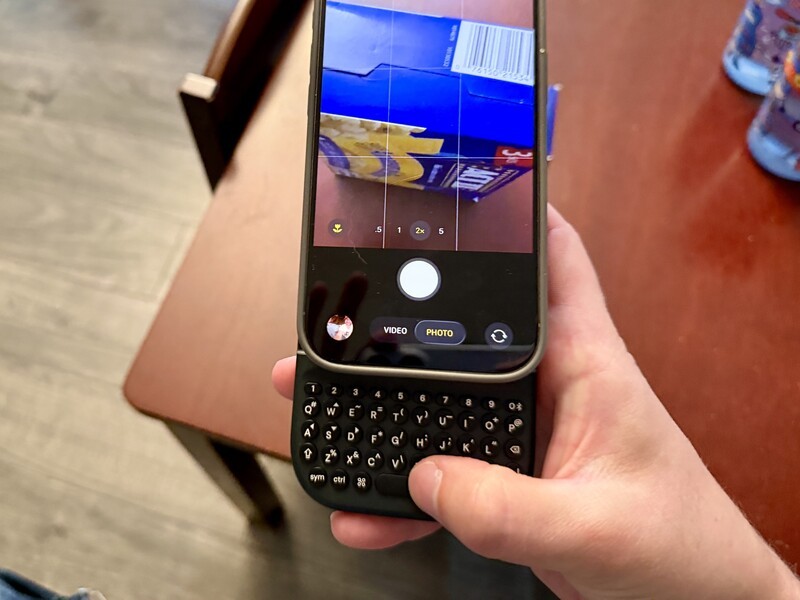
These built-in shortcuts will help you copy and paste text, navigate the home screen, and more.
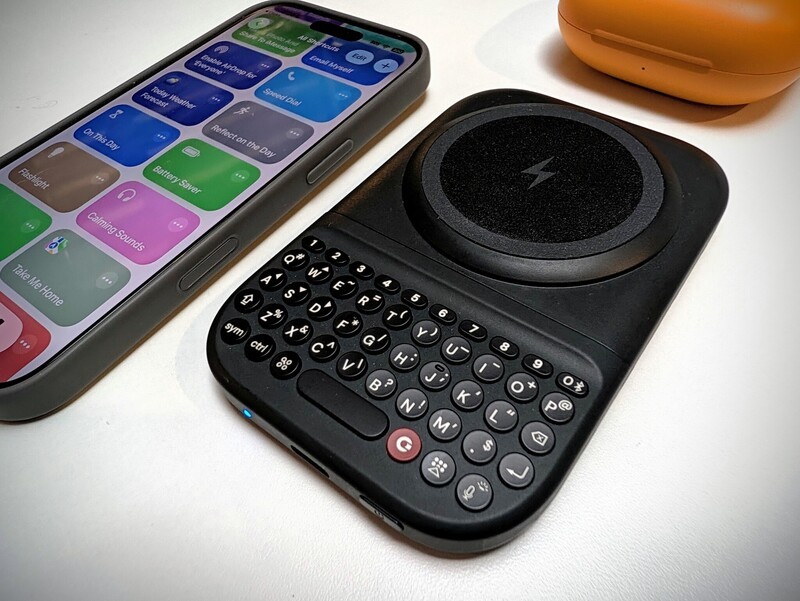
The built-in shortcuts are great, but the real "pro" setup involves mapping unique actions to the Clicks Key. For a detailed guide of how to do this on iPhone check out our helpful article right here.
But the basic steps:
- Create an action using the iOS shortcuts app
- Toggle on some Accessibility settings on your iPhone
- Map that shortcut to a button combo on your Power Keyboard
Part 3: Getting Fancy With Keyboard Shortcuts
The possibilities you can unlock with custom iOS shortcuts and the Clicks Power keyboard are endless. Here's just a few some of our Power Users have programmed for themselves:
| Combination | Action | Why it Works |
|---|---|---|
| Clicks + B | Toggle Smart Bulbs | Control your environment without leaving your current app. |
| Clicks + L | Running Late | Pulls attendees for your next meeting, uses your current Maps location to warn people how many minutes you're running behind. |
| Clicks + D | Directions to Next Event | Pulls turn-by-turn navigation for your next calendar entry. |
| Clicks + R | Meeting Recorder | Star a voice recording for a meeting where the transcription is automatically summarized in a shareable note afterward. |
| Clicks + S | Screenshot to Calendar Event | Take a screenshot of key info with dates and times and automatically turn it into a calendar event. |
| Clicks + F | Food Scanner | Use the camera app to scan a barcode of a food item to create an at-a-glance food log capturing your macros in Apple Notes or Health. |
| Clicks + E | Expense Tracker | Open the built-in camera scanner to pull merchant name, dollar amount, and date into an iCloud Numbers spreadsheet complete with PDF. |
| Clicks + T | Tabs Reading List | Grab the URLs from all open tabs from Safari (or chrome) and compile a bulleted "reading list" under today's date so you can safely close the tabs without the anxiety. |
The custom shortcuts with iOS "hack" is something users of the original Clicks keyboard loved to tinker with. Whether you're manually building your own shorcuts or tapping into (or modifying) some of the existing options available in the Shortcuts app, this little bit of knowhow can drastically change how you use your Clicks Power Keyboard.
This video was made for the original Clicks Keyboard, but the fundamentals are true for Power Keyboard.
Part 4: The Clicks App
While the Clicks Power Keyboard connects and types immediately out of the box, pairing it with the Clicks App turns the hardware into a fully tailored productivity tool.
For power users, the app unlocks deep hardware controls, device management, and workflow adaptations that physical shortcuts alone just can't do.
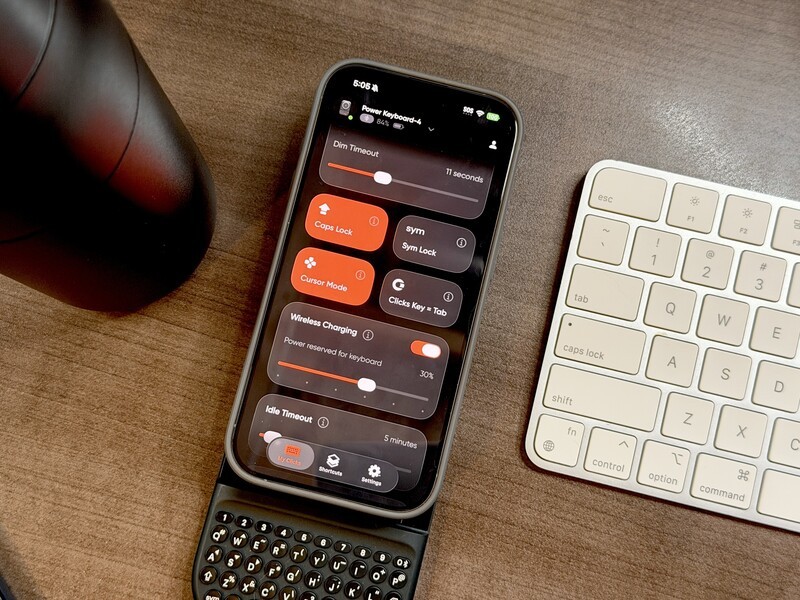
- Dial In Power Reserve Margins: The built-in 2,300 mAh battery charges both the keyboard and your phone. Inside the app, the Power Reserve Slider lets you set the exact cutoff point (default 500 mAh down to 0 mAh) where wireless charging turns off. Power users can prioritize keeping the keyboard alive during long travel days or drop the reserve to zero to squeeze emergency juice into a dying phone.
- Manage 9 Multi-Device Channels Visually: Rather than trying to remember which hardware number key (1–9) connects to your iPad, Apple TV, or Vision Pro, the app lists every paired channel. You can rename each slot (e.g., "Living Room Apple TV" or "Travel Foldable"), monitor active connection states, and clear inactive slots in one tap without resetting the hardware.
- Toggle Soft vs. Hard Return for Chat vs. Long-Form: Power users can switch the behavior of the Return key based on their task. Set it to Hard Return to instantly dispatch messages in Slack and messaging apps, or Soft Return to insert proper carriage returns when writing long-form notes and articles without accidentally sending drafts half-finished.
- Precision Backlight & Battery Conservation: Instead of a generic on/off toggle, use dual sliders to dial in the exact brightness level and idle timeout duration (in seconds) to reduce power drain during nighttime work sessions. You can also configure Battery Saving Mode to determine how quickly the keyboard disconnects when idle.
- Glanceable Status via Dynamic Island & Live Activities: For iOS users, toggling on Dynamic Island integration keeps active modes (such as Cursor Mode, Alt Lock, or connection status) visible at the top of your screen, letting you confirm settings without digging through menus.
- Cursor Mode & Key Re-assignment: Enable Cursor Mode to navigate spreadsheets and code blocks using WASD and IJKL like directional arrow keys, or customize functional modifier behavior (like configuring the Clicks Key to act as a native Tab or Ctrl key). This
- Over-the-Air Firmware Updates: Keeping your Power Keyboard up to date ensures that as we get feedback from the community on features they'd like to see integrated into their keyboard, you'll get the updates as soon as they're ready!
You absolutely can use the Clicks Power Keyboard without getting into the app. But to get the most out of your premium physical keyboard, it's worth getting familiar with Clicks app and all it can do!
Power Users On The Power Keyboard
Getting tactile keys back on your phone changes how you type, but setting up custom shortcuts and dialing in the hardware changes how you work.
Once your most frequent multi-step tasks are mapped to physical muscle memory, reaching for the screen starts to feel like a step backward.
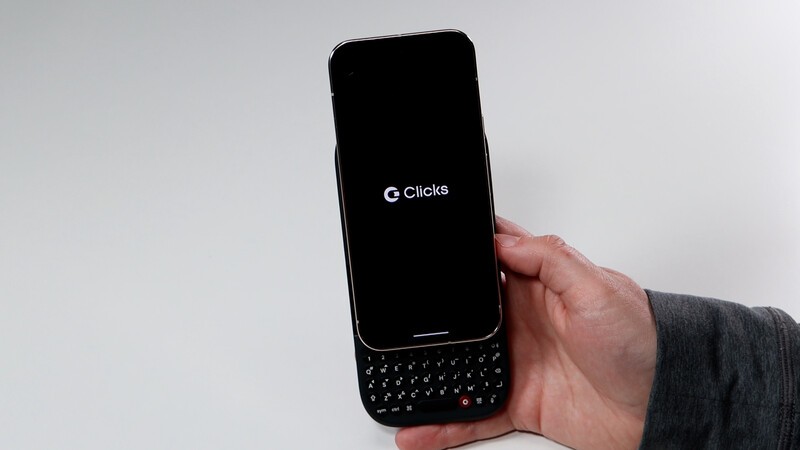
The Clicks Power Keyboard is built to eliminate that friction. It turns everyday phone interactions from passive taps into fast, intentional actions. The end result? You get more done with the device in your pocket.
And if you're not using Power Keys across you're whole tech ecoystem, you're missing out, so be sure to check out our guide of using the Clicks Power Keyboard with all the gadgets in your smart home.
Read more
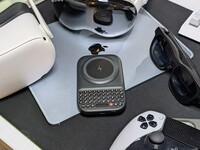
How to Use Clicks Power Keyboard Across Your Gadgets
Treating the Power Keyboard solely as a phone accessory leaves its best capabilities on the table. This guide will share some ways users have told us they now count on Power Keyboard for their whole tech ecosystem.
What is ‘premium’? It’s more than meets the eye.
Everything about Clicks Communicator has been designed to deliver a premium communication experience from the inside, out.
Introducing the Communicator Ring
Communicator Ring is a minimalist bumper case that gives Clicks Communicator an added layer of protection while complementing its design.
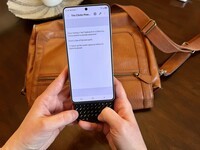
Does the Clicks Power Keyboard Work with Samsung Galaxy Phones?
At Clicks, we believe your technology should work for you, not against you. Since the beginning, we've been dedicated to helping people reclaim their screen real estate and rediscover the precision that only a physical keyboard can provide. With the launch of the Clicks Power Keyboard, we're bringing that high-performance tactile experience to a massive new world of devices....