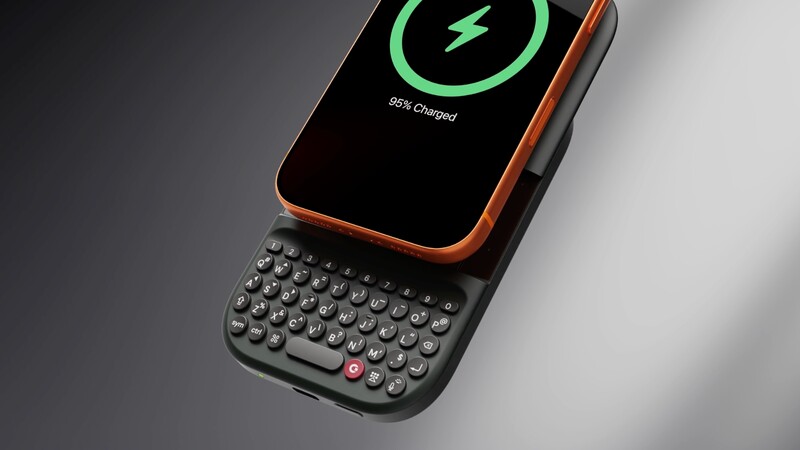
For years, the smartphone experience has involved a trade-off. We gained beautiful, edge-to-edge displays but lost the tactile precision and speed of a physical keyboard. With the launch of the Clicks Power Keyboard, that compromise is officially over.
Clicks Power Keyboard delivers fewer typos, more screen space, and physical controls across your Apple devices.
Unlike the traditional Clicks cases designed for specific models, the Power Keyboard is a universal, magnetic slider that brings the "Power Keys" experience to any iPhone with MagSafe or Qi2 compatibility. Whether you're a creator drafting a script or a professional triaging a flooded inbox, here is how to turn your iPhone into the ultimate productivity powerhouse.
Universal Compatibility
The Power Keyboard doesn't require you to swap your favorite case. Using a high-strength MagSafe or Qi2 magnetic connection, it snaps directly onto the back of your iPhone. It works with pase, plus, pro, and Pro Max models and even the under-appreciated iPhone Mini!
Not sure if your iPhone is compatible? Chances are it is, but here's a quick rundown of iPhone models with built-in MagSafe connections:
- iPhone 17
- iPhone 16
- iPhone 15
- iPhone 14
- iPhone 13
- iPhone 12
- iPhone Air
If you bought the super slender iPhone 16e, don't worry—you can buy a low-cost case on Amazon that is MagSafe compatible and you can use the Clicks Power Keyboard with your iPhone 16e, no problem!
Setting Up The Clicks Power Keyboard
The Clicks Power Keyboard connects via Bluetooth (BLE 5.4). This eliminates the need for physical port alignment, making it compatible with everything from standard iPhone models to the larger Pro Max and Ultra versions.
To set up your Power Keyboard:
- Snap it on: Align the keyboard with the magnets on the back of your iPhone.
- Pairing Mode: When you power on the keyboard for the first time it will automatically enter pairing mode.
- Pick a number Press down on the number key that you'd like to pair your device to (1-9).
- Connect: Select "Clicks Power Keyboard" in your iPhone's Bluetooth settings.
- Customize: Open the Clicks App to adjust backlighting, key behavior, and how much of the internal 2,300 mAh battery is reserved for typing versus wirelessly topping up your phone.
Multi-Device Switch: You can pair up to three devices at once. Simply press the Power button on the bottom of the keyboard followed by the 1, 2, or 3 key.
How to Clear a Channel for a New Device
If you want to pair a new device or remove a previously paired one, you can easily clear a channel:
- Select the channel: Press POWER + channel number (e.g., POWER + 1 for channel 1).
- Clear the channel: Press SYM + 0.
- Ready to pair: That channel is now cleared and available to add a new device. This makes it simple to switch between devices or refresh your pairing without any hassle.
Versatile Orientations: Portrait, Landscape, and Beyond
The magic of the Power Keyboard lies in its multiple slider positions. You aren't locked into one way of working:
- The Classic Portrait: Slide the keyboard down while in vertical mode for a familiar, one-handed "BlackBerry-style" typing experience. It's perfect for quick Slack replies or tweeting on the move.
- The Landscape Editor: Rotate your phone horizontally and slide the keyboard out to transform your iPhone into a micro-laptop. This orientation is perfect for editing spreadsheets, drafting long-form articles, or managing complex documents.
- The "Split" Workflow: Because the connection is magnetic, you can even detach the keyboard entirely to use it as a remote for your iPhone while it's propped up on a stand during a video call.
The built-in slider is designed to support not just differnt screen orientations but also different phone models:
- Slider Position 1: Intended for landscape operation for basically any iPhone model.
- Slider Position 2: The second stop is for base/Pro size models that might need a little extra room.
- Slider Position 3: This is designed for the larger-screen models: iPhone Plus, Pro Max, and Air.
Each slider position was designed with intention to give you the best typing experience no matter what size, era, or model of iPhone you're using.
Why Get Clicks Power Keyboard for iPhone
The most immediate benefit of using Power Keys is reclaiming your screen. On a standard iPhone, the virtual keyboard consumes nearly 50% of your display. With the Power Keyboard, that space is yours again. You can see the full thread of a conversation while you type, or view your entire document without a digital overlay blocking your view.
For gaming and downtime, the Power Keyboard acts as a compact controller for titles that support keyboard input, ensuring your thumbs never block the action on-screen. When the workday ends, use it as a dedicated remote to search for content on your Apple TV or smart screen.
Master the Shortcuts
Power users know that speed comes from shortcuts. The Power Keyboard supports familiar iOS commands that make navigating your phone feel like using a Mac:
- CMD + Space: Launch Spotlight Search instantly.
- CMD + H: Return to the Home screen.
- CMD + Tab: Quickly switch between your most recent apps.
- Custom Clicks Mode: Use the Clicks App to map specific keys to launch your favorite Shortcuts.
How Long Does The Battery Last?
The main purpose of the Clicks Power Keyboard is to create the ultimate typing experience. However, the integrated 3,300 mAh battery is an added benefit for its ability to be an emergency top-up solution for your iPhone.
While it isn't meant to replace a large power bank for long flights, it provides that extra bit of juice to push you through a busy workday where your battery might otherwise hit Power Saver mode.
More Than Just a Keyboard
At its core, the Power Keyboard is a dual-purpose tool. While you type, the integrated 2,300 mAh battery can provide a 5W wireless "top-up" to your iPhone.
With the ability to pair with up to three devices simultaneously, you can switch from typing a text on your iPhone to replying to an email on your iPad with a simple keyboard shortcut. The benefits extend to your whole digital life as you use that physical keyboard across your entire gadget array.
Read more
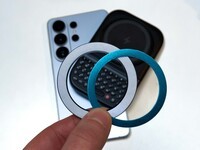
Samsung's Phones Don't Have Magnets But You Can Still Use Power Keys
The Clicks Power Keyboard relies on a high-strength magnetic connection to "snap" onto the back of your smartphone. While this is a native feature for some devices, Samsung Galaxy phones just refuse to adopt this feature. Having a built-in magnetic ring in the chassis is standard with many other phones, but not galaxy devices. At least not as of 2026. Having no magnetic ring on...
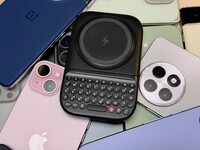
Which Phones is the Clicks Power Keyboard Compatible With?
One of the most frequent questions we receive is whether the new Clicks Power Keyboard will fit a specific phone model. While our original keyboard cases were precision-engineered for specific flagship models. The Power Keyboard marks a significant shift toward universal, cross-device compatibility. Because Power Keys uses a magnetic attachment system rather than a wrap-around...
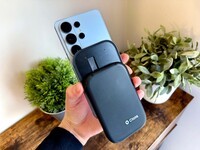
Clicks Power Keyboard: The Samsung Galaxy Compatibility Guide (2021–2026)
One of the most frequent questions we get at Clicks is: "Will it fit my phone?" With the launch of the Clicks Power Keyboard, the answer is almost certainly yes. Unlike our original case-style keyboards, the Power Keyboard uses a universal magnetic slider. This means that as long as your phone has a way to attach to a magnet (built-in, through a compatible case, or by adding a magnetic...
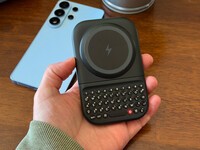
The Samsung Users' Guide to Clicks Power Keyboard
For years, the Samsung Galaxy experience has involved a silent trade-off. We gained some of the most stunning mobile displays in the world, but we keep losing that real estate to the digital keyboard any time we try and get stuff done. The moment you need to reply to a Slack message or draft an email, that virtual keyboard slides up and consumes nearly half of that beautiful Infinity...