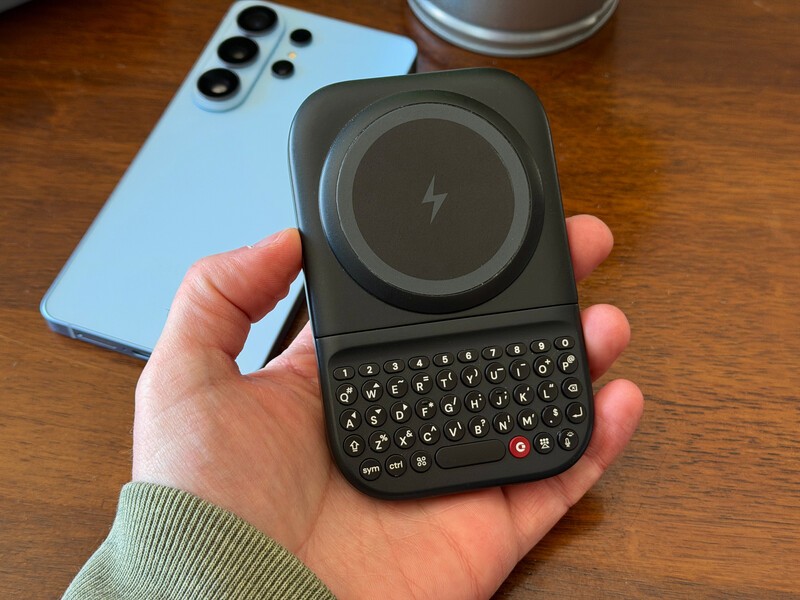
For years, the Samsung Galaxy experience has involved a silent trade-off. We gained some of the most stunning mobile displays in the world, but we keep losing that real estate to the digital keyboard any time we try and get stuff done. The moment you need to reply to a Slack message or draft an email, that virtual keyboard slides up and consumes nearly half of that beautiful Infinity Display.
With the launch of the Clicks Power Keyboard, that compromise is officially over.
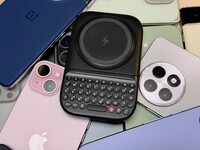
The Clicks Power Keyboard delivers fewer typos, more screen space, and physical controls across your Samsung ecosystem. Thanks to its versatile design, the Power Keyboard is a universal, magnetic slider that brings "Power Keys" to any Galaxy smartphone (with a magnetic case). Whether you're a creator drafting a script on your S26 Ultra or a professional triaging an inbox on an S24, here is how to turn your phone into the ultimate productivity powerhouse.
Connecting Your Clicks Power Keyboard To Your Samsung Smartphone
Even though Samsung Galaxy smartphones still don't have built-in magnets to connect to accessories (we really though the S26 lineup was gonna usher that in) you can still get your "Power Keys" to work with your Galaxy phone by using any of the following:
- Add a magnetic ring - This is the cheapest way. Just buy a stick-on smartphone magnet ring on Amazon and you're all set
- Buy an official Samsung Magnet Case- This is much more expensive, but also much more elegant
- Buy a compatible magnetic case for your phone- If you don't want to shell out the premium pay for the "real-deal" you can find many compatible cases on Amazon that aren't made by Samsung
Note. Since the Galaxy flagships for the past five years have all included wireless charging, by using any of the above methods, you'll be able to tap into the Clicks Power Keyboard's other main advantage, it's built-in 2,300 mAh battery.
Setting Up Your Clicks Power Keyboard
Because the Power Keyboard connects via Bluetooth (BLE 5.4), it is compatible with the entire modern Galaxy lineup. Setup is nearly instantaneous:
- Enter Pairing Mode: Press and hold the power key, then pick which number you would like to assign. (1-9). The LED will indicate that Power Keys is discoverable.
- Pair on Galaxy: Navigate to your Samsung's Bluetooth settings and select Clicks Power Keyboard.
- Automatic Connection: Your phone is now saved to the 1 key.
You can pair up to three different devices simultaneously and switch between them by pressing the Power button and then the 1, 2, or 3 key.
How to Clear a Channel for a New Device
If you want to pair a new device or remove a previously paired one, you can easily clear a channel:
- Select the channel: Press POWER + channel number (e.g., POWER + 1 for channel 1).
- Clear the channel: Press SYM + 0.
- Ready to pair: That channel is now cleared and available to add a new device. This makes it simple to switch between devices or refresh your pairing without any hassle.
Master the Android Shortcuts
The real magic of Clicks on a Samsung device happens through system shortcuts. These allow you to navigate your phone with the speed of a laptop user:
- CMD + Space: Launch your system search instantly.
- CMD + H: Jump back to your Home screen.
- CMD + Tab: Quickly cycle through your most recent apps.
This is just to name a few of the built-in Android shortcuts that are available on these smartphones that most people never tap into using their digital keyboards.
Beyond the Keys: The Power of Flexibility
The Clicks Power Keyboard isn't just a typing tool for your smartphone. It's the key linking your whole ecosystem of Samsung devices (phone, tablet, even TV) through one central device.
Typing on the Power Keyboard is a dream. It features backlit keys for confident work in low-light environments and a dedicated number row that makes entering phone numbers or editing spreadsheets significantly faster.
The integrated 2,300 mAh battery powers the keyboard itself and can wirelessly top up your smartphone via MagSafe or Qi2 charging (but, this means you'll have to add a magnetic ring or compatible case to your Samsung Galaxy smartphone).
Clicks Power Keyboard unlocks a new level of productivity and control for any device you use it with. Samsung users will finally be able to enjoy the sculpted keys and satisfying "clicks" our company is known for.
Read more
Using Clicks Power Keyboard with Samsung Galaxy Tablets
Do you use your tablet for work or for fun? Or has it been relegated to a forgotten drawer and whenever you remember it exists you discover the battery is dead because you haven't used it in weeks? Part of the problem with tablets is they just lack the productivity that can be achieved from a laptop - but that doesn't have to be the case. Picture this! You're at a crowded coffee...
Does the Clicks Power Keyboard Work with Samsung Galaxy Phones?
At Clicks, we believe your technology should work for you, not against you. Since the beginning, we've been dedicated to helping people reclaim their screen real estate and rediscover the precision that only a physical keyboard can provide. With the launch of the Clicks Power Keyboard, we're bringing that high-performance tactile experience to a massive new world of devices....
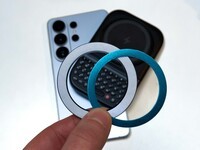
Samsung's Phones Don't Have Magnets But You Can Still Use Power Keys
The Clicks Power Keyboard relies on a high-strength magnetic connection to "snap" onto the back of your smartphone. While this is a native feature for some devices, Samsung Galaxy phones just refuse to adopt this feature. Having a built-in magnetic ring in the chassis is standard with many other phones, but not galaxy devices. At least not as of 2026. Having no magnetic ring on...
Which Phones is the Clicks Power Keyboard Compatible With?
One of the most frequent questions we receive is whether the new Clicks Power Keyboard will fit a specific phone model. While our original keyboard cases were precision-engineered for specific flagship models. The Power Keyboard marks a significant shift toward universal, cross-device compatibility. Because Power Keys uses a magnetic attachment system rather than a wrap-around...