Do you use your tablet for work or for fun? Or has it been relegated to a forgotten drawer and whenever you remember it exists you discover the battery is dead because you haven't used it in weeks?
Part of the problem with tablets is they just lack the productivity that can be achieved from a laptop - but that doesn't have to be the case.
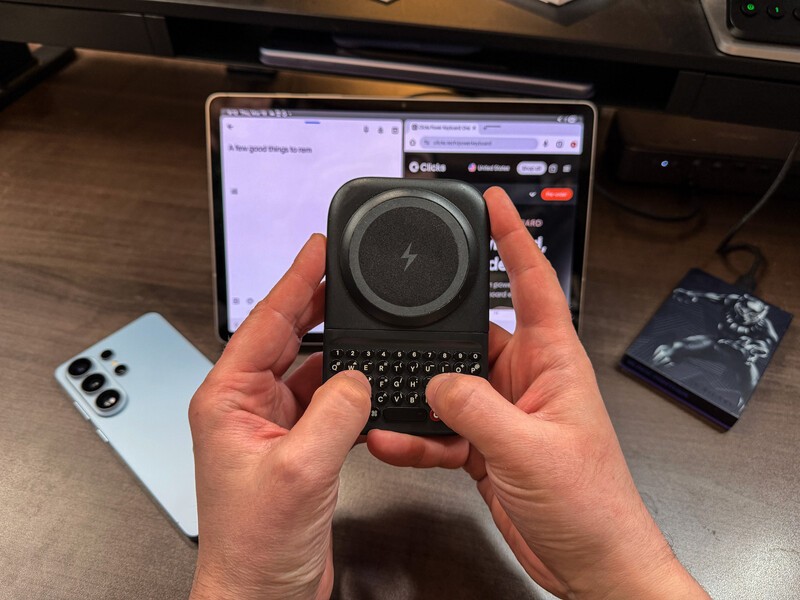
Picture this! You're at a crowded coffee shop when your boss sends an urgent email. You need to bang out a 1,000-word proposal. You reach into your messenger bag to pull out your Galaxy Tab S10 Ultra. But you're not daunted about working on your tablet, because you reach into your pocket, pull out the Clicks Power Keyboard! Suddenly, your tablet isn't just a device for binging Netflix. It's a large-screen workstation!
Setting Up Your Clicks Power Keyboard with your Samsung Tablet
Because the Power Keyboard connects via Bluetooth (BLE 5.4), it's compatible with the entire modern Galaxy lineup. Connecting Power Keys wirelessly to your tablet is simple:
- Enter Pairing Mode: While holding down the power key, also press down on the number key that you'd like to pair your device to (1-9). The LED will indicate that Power Keys is now discoverable.
- Pair on Galaxy: Swipe down from the notification shade to your Samsung tablet's Bluetooth and tap on Clicks Power Keyboard.
- Saved Connection: Your tablet will now be saved to the 1 key.
You can pair up to three different devices simultaneously and switch between them by pressing the Power button and then the 1, 2, or 3 key.
The Landscape Workflow
Since you can pair the Clicks Power Keyboard with multiple devices you can quickly switch from using your Galaxy S26 to typing on your Samsung tablet.
The Power Keyboard features a three-position magnetic slider, so if you have an Ultra, you'll want to slide the Power Keys all the way open to reveal the full number row unobstructed.
But when it's time to type on the tablet, you'll snap it shut to have an ergonomic and pocketable Bluetooth keyboard whenever you need it!
Read more
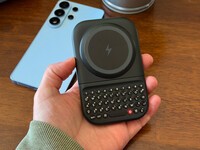
The Samsung Users' Guide to Clicks Power Keyboard
For years, the Samsung Galaxy experience has involved a silent trade-off. We gained some of the most stunning mobile displays in the world, but we keep losing that real estate to the digital keyboard any time we try and get stuff done. The moment you need to reply to a Slack message or draft an email, that virtual keyboard slides up and consumes nearly half of that beautiful Infinity...
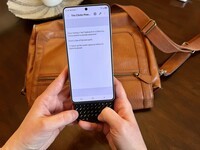
Does the Clicks Power Keyboard Work with Samsung Galaxy Phones?
At Clicks, we believe your technology should work for you, not against you. Since the beginning, we've been dedicated to helping people reclaim their screen real estate and rediscover the precision that only a physical keyboard can provide. With the launch of the Clicks Power Keyboard, we're bringing that high-performance tactile experience to a massive new world of devices....
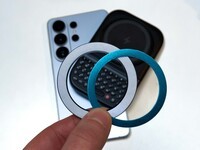
Samsung's Phones Don't Have Magnets But You Can Still Use Power Keys
The Clicks Power Keyboard relies on a high-strength magnetic connection to "snap" onto the back of your smartphone. While this is a native feature for some devices, Samsung Galaxy phones just refuse to adopt this feature. Having a built-in magnetic ring in the chassis is standard with many other phones, but not galaxy devices. At least not as of 2026. Having no magnetic ring on...

Which Phones is the Clicks Power Keyboard Compatible With?
One of the most frequent questions we receive is whether the new Clicks Power Keyboard will fit a specific phone model. While our original keyboard cases were precision-engineered for specific flagship models. The Power Keyboard marks a significant shift toward universal, cross-device compatibility. Because Power Keys uses a magnetic attachment system rather than a wrap-around...