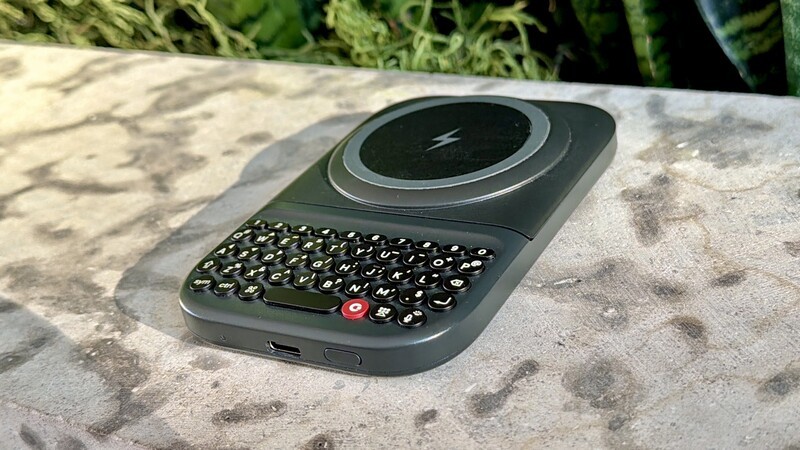
The true power of the Clicks Power Keyboard isn't just in the tactile typing (though that is instantly satisfying), it's in what this keyboard unlocks on your iPhone.
You don't have to be a tech genius to create and map advanced functions for your smartphone or smart home to your new Clicks Power Keyboard.
First, that physical keyboard gives you the accuracy and confidence that only comes from physical keys. Second, you're opening up a whole bunch of screen real-estate. But the next big "WOW!" moment comes when you create your first custom shortcut and map it to your Clicks Power Keyboard.
Built-In Shortcuts
Right out of the box, your Clicks Power Keyboard is ready to work with existing iOS shortcuts. Most people don't even know these are available, but now you'll be able to master them instantly:
| Action | Shortcut |
|---|---|
| Search (Spotlight) | Command + Space |
| Go to Home Screen | Command + H |
| Switch Apps | Command + Tab |
| Copy Text | Command + C |
| Paste Text | Command + V |
| Cut Text | Command + X |
| Undo Action | Command + Z |
| Select All | Command + A |
| Scroll Down (Web/Lists) | Space |
The built-in shortcuts are great, but the real "pro" setup involves mapping unique actions to the Clicks Key.
This guide will walk you through the advanced process of creating and mapping custom automations using Full Keyboard Access (FKA) in iOS.
Phase 1: Create Your Action in the Shortcuts App
Before mapping a key, you must have an active shortcut to trigger. Note from this point on all these instructions are for iPhone specifically. If you don't have an iPhone check out our Intro To Custom Shortcuts guide for Android Users.
- Open the Shortcuts app on your iPhone.
- Tap the + icon to create a new shortcut.
- Add an action: For example, "Set Flashlight" to On or "Open App" (e.g., Notion or ChatGPT).
- Crucial Step: Rename the shortcut to something short and unique (e.g., "LightsOn" or "QuickNote").
- Test the shortcut by tapping the play button to ensure it functions as intended.
Phase 2: Prepare iOS for External Mapping
iOS handles custom external keyboard mapping through Full Keyboard Access, an accessibility feature that treats keyboard inputs as system commands.
- Navigate to Settings > Accessibility > Keyboards.
- Tap Full Keyboard Access and toggle it On.
- (Optional but recommended): Under the same menu, tap Appearance and set Auto-Hide to 1 or 2 seconds so the highlight box doesn't clutter your screen.
- Go to Commands. You will see a long list of default system shortcuts.
- Clean Slate Tip: To prevent the Power Keyboard from accidentally triggering unwanted system actions, tap into the default commands and "Clear" the ones you don't use.
Phase 3: Mapping to the Power Keyboard
Now, you will link your physical Clicks keys to the software triggers you created in Phase 1.
- In the Commands menu (Settings > Accessibility > Keyboards > Full Keyboard Access > Commands), scroll all the way to the bottom.
- You will find a section titled Shortcuts. Here, you'll see a list of every shortcut currently in your Shortcuts app.
- Tap the shortcut you want to map (e.g., "QuickNote").
- When prompted to "Enter a key combination," press the Clicks Key (the round 'G' key) followed by your chosen letter (e.g., Clicks + N).
- Tap Done.
Inspiration Time: High-Value Workflow Examples
The possibilities you can unlock with custom iOS shortcuts and the Clicks Power keyboard are endless. Here's just a few some of our Power Users have programmed for themselves:
| Combination | Action | Why it Works |
|---|---|---|
| Clicks + L | Toggle Smart Lights | Control your environment without leaving your current app. |
| Clicks + S | Shazam | Identify music instantly while on the go. |
| Clicks + D | Directions to Next Event | Pulls turn-by-turn navigation for your next calendar entry. |
| Clicks + B | Check Battery | View the exact charge level of your iPhone and the Power Keyboard's 2,300 mAh internal cell. |
| Clicks + P | Switch Profile | Instantly switch Bluetooth pairing from your iPhone to an iPad or Apple TV. |
Troubleshooting & Tips
Hopefully all is smooth sailing, but just in case it's not—here's a few tips to consider:
- Conflict Resolution: If a shortcut isn't firing, ensure that a standard iOS shortcut (like CMD + N for new message) isn't taking precedence. FKA commands usually sit at the highest level of priority.
- Backlighting Control: You can adjust the intensity of the keyboard's backlight through the Clicks App to save battery for your custom triggers.
- Firmware Updates: Always check the Clicks App for firmware updates. New releases often include "Shortcuts Libraries" with pre-built actions you can install with a single tap.
With the knowledge above, you should be set (and unstoppable) when it comes to dialing in your Clicks Power Keyboard to be the ultimate automation device for your smart home and smartphone.
Read more
Samsung's Phones Don't Have Magnets But You Can Still Use Power Keys
The Clicks Power Keyboard relies on a high-strength magnetic connection to "snap" onto the back of your smartphone. While this is a native feature for some devices, Samsung Galaxy phones just refuse to adopt this feature. Having a built-in magnetic ring in the chassis is standard with many other phones, but not galaxy devices. At least not as of 2026. Having no magnetic ring on...
Which Phones is the Clicks Power Keyboard Compatible With?
One of the most frequent questions we receive is whether the new Clicks Power Keyboard will fit a specific phone model. While our original keyboard cases were precision-engineered for specific flagship models. The Power Keyboard marks a significant shift toward universal, cross-device compatibility. Because Power Keys uses a magnetic attachment system rather than a wrap-around...
Clicks Power Keyboard: The Samsung Galaxy Compatibility Guide (2021–2026)
One of the most frequent questions we get at Clicks is: "Will it fit my phone?" With the launch of the Clicks Power Keyboard, the answer is almost certainly yes. Unlike our original case-style keyboards, the Power Keyboard uses a universal magnetic slider. This means that as long as your phone has a way to attach to a magnet (built-in, through a compatible case, or by adding a magnetic...
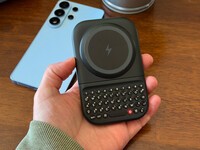
The Samsung Users' Guide to Clicks Power Keyboard
For years, the Samsung Galaxy experience has involved a silent trade-off. We gained some of the most stunning mobile displays in the world, but we keep losing that real estate to the digital keyboard any time we try and get stuff done. The moment you need to reply to a Slack message or draft an email, that virtual keyboard slides up and consumes nearly half of that beautiful Infinity...